PCBAtlas User Handbook
Open a PCB or schematic from the library, inspect, search, and check objects in 2D, then switch to 3D, read Data, or export files as needed.
The retained screenshots were captured on 2026-09-11 using a local macOS 1.1.2 build, with English UI labels for reference. Wide/narrow layouts describe windows, not an iPhone device. Instructions follow current source; iOS/iPadOS differences are stated separately, and these screenshots do not verify Android UI.
Where to start
- Install and launch: enter the library.
- First import and new project: choose a file, project folder, or blank schematic.
- Five-minute tour: complete viewing, search, and export.
Workspace navigation
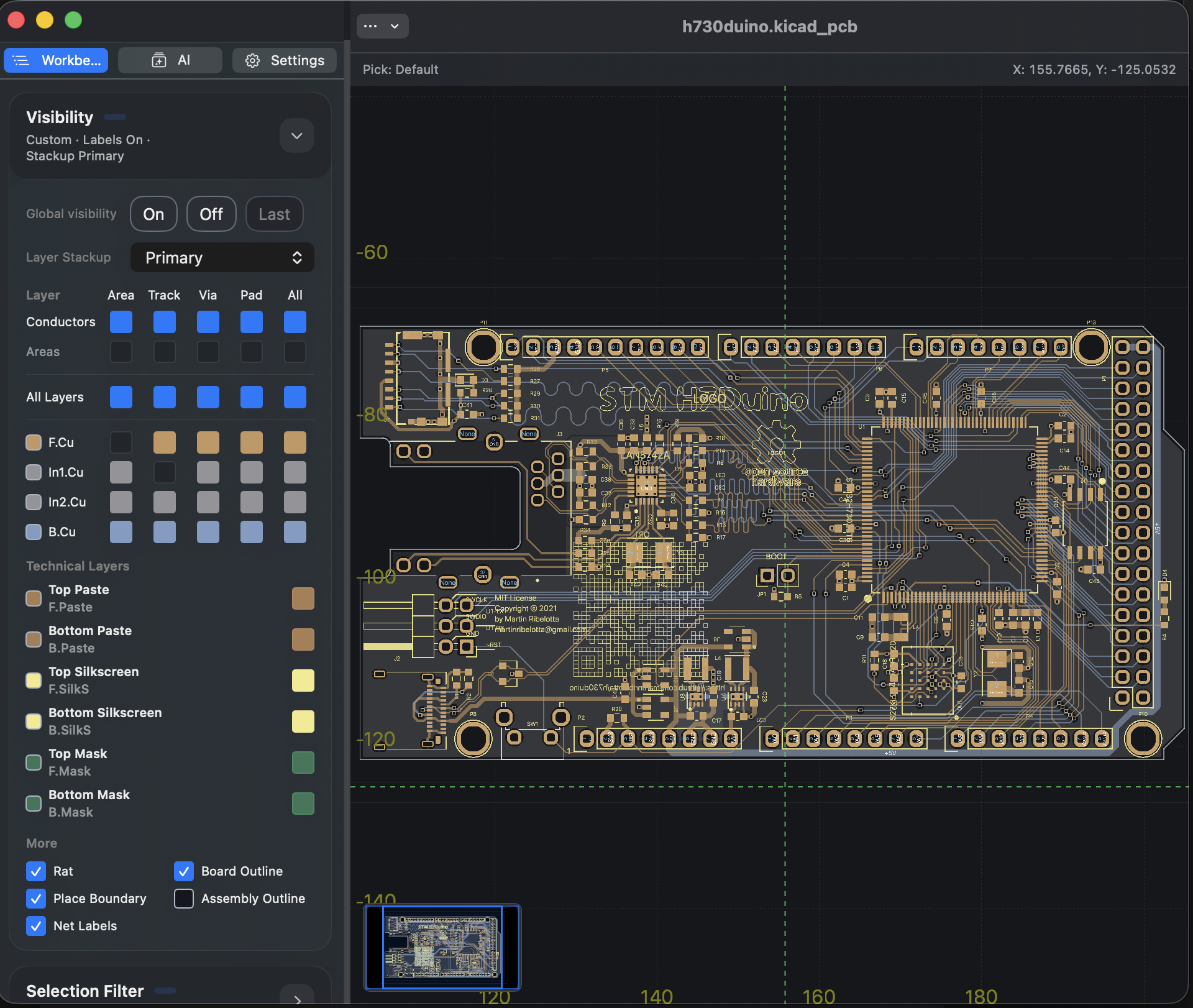
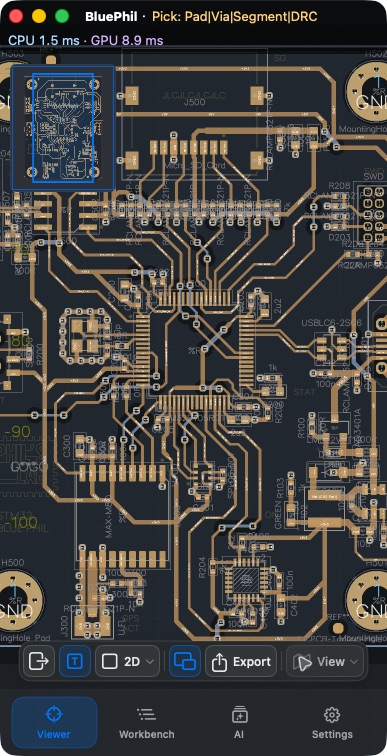
The workspace centers on the 2D canvas. Its floating toolbar provides Info, Project (when available), Inspect, AI, 3D, Estimate, and Settings; some entries move into More when an object is selected. Click the active tool again to collapse it. Panels appear on the right in wide layouts and above the canvas in narrow layouts; 3D opens in a separate modal window. Bottom Viewer/Workbench/Data tabs in historical screenshots are not current navigation paths.
Read by task
- Library and revisions: manage versions and project files.
- 2D viewing and cross-probing: pick objects, open Info, use dual canvases, and inspect related objects.
- Workbench: visibility, Selection & Focus, net search, and issues.
- 3D viewing: board body, camera, and model completeness.
- Basic editing: small PCB edits and the schematic editing entry.
- Revision comparison: compare Before / After.
- Manufacturing estimate: read the local estimate assumptions.
- Export and sharing: images, board files, and fabrication outputs.
- Settings and AI: display, language, service setup, and purchases.
Scope of this verification pass
The following were actually exercised: library grid / list, Information, PCB object picking, net search and highlight, expanding Info in the narrow shell, 3D, Data, PNG export, project sheet switching, schematic search with PCB linkage, and creating a new schematic. Edit write-back, live AI responses, store purchases, every interchange format, Board Diff, and physical mobile devices are not counted as passed in this pass.
Each page’s “Last verified” date distinguishes hands-on operation from document review; the smoke path records the verification scope, and capability boundaries describe known limits. Other locales were aligned to this Simplified Chinese structure.
2026-10-13: instructions and translations checked against current source; historical screenshots retain their capture dates. This documentation review is not new physical-device or store-purchase acceptance.