Skip to content
Document Version v2026.07.07.0
Download PDF

Five-Minute Tour

Goal

Take the shortest possible path through the app, experience the most important current value, and quickly judge whether this version is ready for day-to-day review and communication.

Supported Platforms

  • iOS
  • macOS

Intended Audience

  • Users who want a quick confidence check before deeper use
  • Testers who need a short smoke path through the current UI

Prerequisites

  • A sample or real board document is available in the library
  • If you want to validate 3D, use a sample that can form a board session
  • If you want to complete export end to end, export access should already be unlocked

Steps

  1. Open one document from the library and move through 2D, Data, and, when applicable, 3D.
  2. Use Workbench, View Info, and AI once each so the main workspace paths are exercised.
  3. Return to 2D and try one export, or confirm the expected purchase-center redirect when export access is still locked.

Result

  • You can quickly confirm whether the current build is usable for routine inspection, navigation, and export-related workflows.
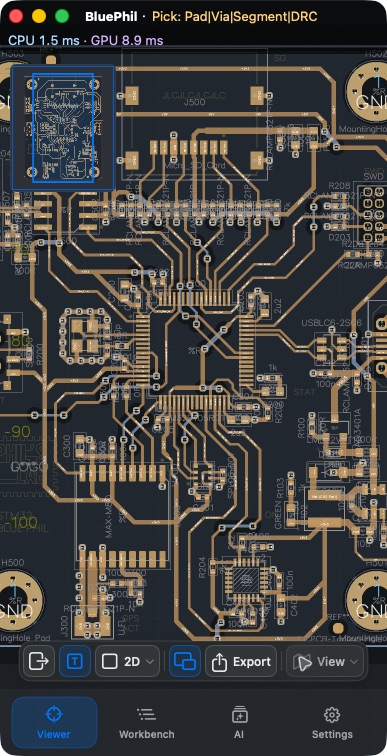
  • If you want to validate 2D / 3D / Data together, start with h730duino or BluePhil from the library.
  • If you mainly care about the import path, bring in one of your own DSN or KiCad files.

Five-Minute Route

  1. Open a document from the library.
  2. In 2D, do one pan, one zoom, and one object selection.
  3. In 2D, right-click or long-press a target, choose View Info, and confirm that the info card appears and can be copied.
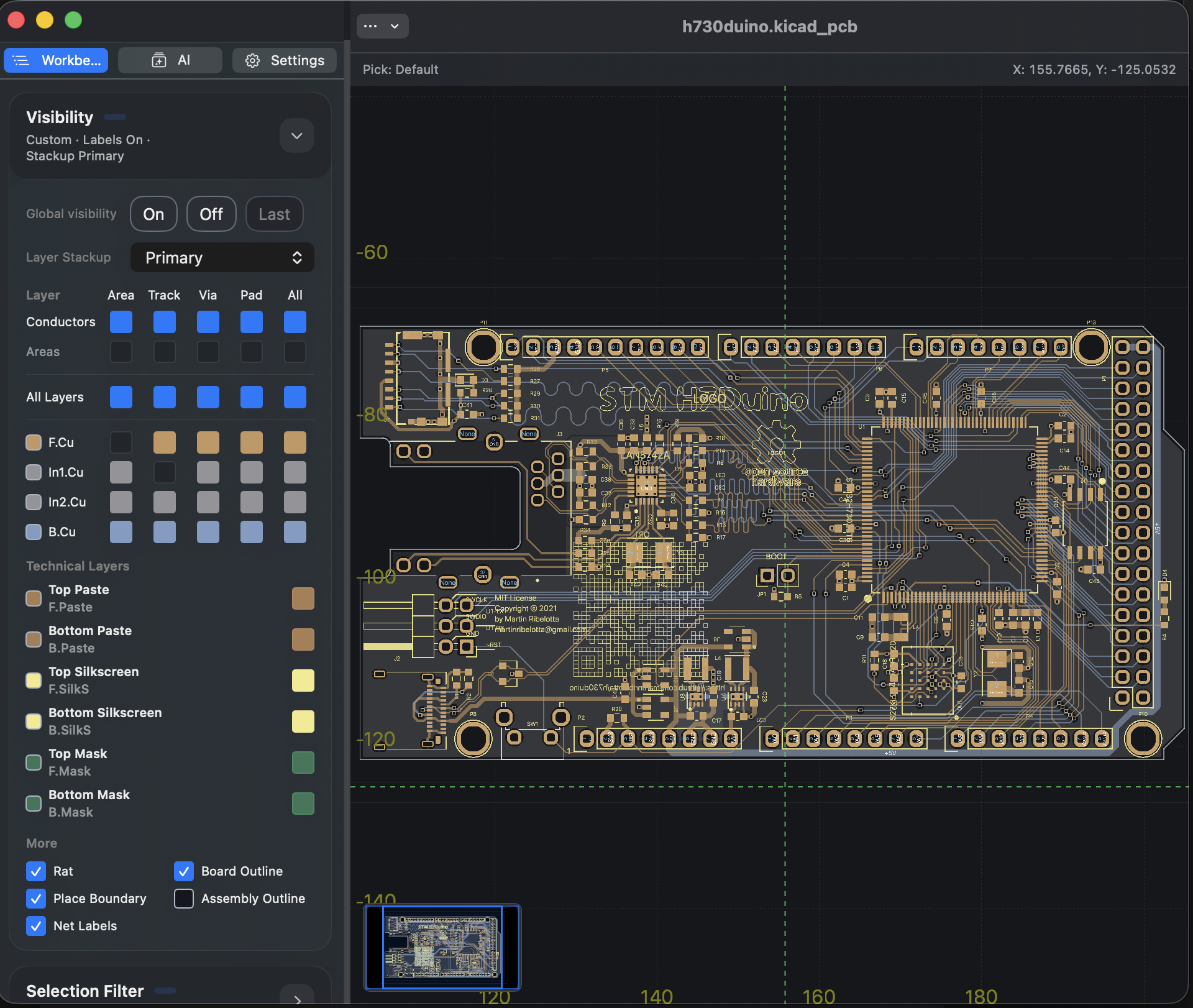
  4. Open Workbench and confirm the default sections are Visibility, Selection Filter, and Objects.
  5. In Objects, search for one item and try at least one action from Locate / Highlight / Isolate / Clear.
  6. Switch to Data and confirm that the current document, revision, statistics, issue summaries, and Quick Estimate / Revision Quote are visible.
  7. If the current document has formed a board session, switch to 3D and confirm that the board-level view finishes loading.
  8. Open AI. If no AI service is set up yet, confirm that the setup card points you to Settings > AI. If an AI service is already configured, confirm that Diagnose Selection and Chat are available, and that the advanced AI details card can be opened.
  9. Return to 2D and try one export. If the app opens the purchase center first, that means export access has not been unlocked on this device yet.
  10. Go back to the library and reopen the same document.

2D workspace with Workbench visibility panel

Data page quick estimate card

3D viewer with board and visibility controls

AI panel before API key configuration

AI panel with diagnose selection workflow

If You Open a KiCad Project or Schematic

In the five-minute route, also confirm:

  • Open Project and check that project source documents, libraries, and settings are grouped.
  • Switch from Project or Sheets to a schematic sheet, and confirm the breadcrumb and current-sheet content refresh together.
  • In schematic Workbench Search, switch between Current Sheet / Whole Project and search for a symbol, net, or label.
  • Click a result and confirm the sheet switches and the target becomes selected; after Locate / Highlight / Clear, the canvas and details panel stay in sync.
  • Pick a symbol, pin, wire, or label directly on the schematic canvas and confirm Selection / Details and canvas highlight update together.

What You Should Be Able to Confirm

  • Navigation between the library and the workspace works normally.
  • The 2D, object-info-card, and Workbench paths are all usable.
  • The Data view provides document and status summaries.
  • Board-level design documents can enter 3D.
  • The AI panel shows the expected setup gate when no AI service is configured, or supports Diagnose Selection / Chat plus advanced cards when configuration is ready.
  • The 2D export path works, or in a locked state correctly redirects to the purchase center.

Things Worth Watching

  • During import or first open, the viewer may briefly switch to Data to show preparation status. This is normal.
  • The first 3D load shows explicit stages and percentages instead of silently hanging.
  • Export starts from 2D; in 3D or Data, return to 2D before exporting.
  • If export access is still locked, tapping export will open the purchase center instead of starting the export right away.
  • If you need a support-ready snapshot, More > Copy Support Bundle should include issue details, Quick Estimate state, AI activity summary, and recent reproduction clues without including AI credentials.

Common Questions

Why do I sometimes see Data first when opening a document?

During import or view preparation, the app may temporarily prioritize the Data page and its loading card. Once the first 2D frame is ready, normal browsing resumes.

Do I always need to validate 3D?

No. 3D requires the current document to form a board session with enough board-level geometry. For samples that do not meet that condition, focus on 2D, Data, and export.

Why did tapping export open a purchase page instead?

That is the current expected behavior. When export access has not been unlocked yet, the workspace opens the purchase center first. After unlocking, return to 2D and export again.