Settings and AI
Android: The official APK is available only as Public Beta, with all features unlocked and no billing, purchase, or restore-purchase flow. The historical macOS verification notes below retain their original scope.
Supported platforms
Apple builds: macOS 14+, iOS / iPadOS 17+. Screenshots in this page are from macOS. Narrow-shell screenshots show window layout, not an iPhone device.
Intended audience
Users who need to adjust display, language, or AI configuration.
Prerequisites
A workspace is already open.
Steps
- Open Settings on the canvas toolbar, or More → Settings with an object selected.
- Use categories or the search box to find options; click the active tool button again to collapse the panel.
| Category | Contents |
|---|---|
| General | Appearance, language notes, terminology preferences, and general options |
| Viewer | 2D / 3D display, camera, rendering, and appearance |
| PCB Display | Layer colors, object styles, labels, and interaction |
| AI | AI service, API key, and model configuration |
| In app purchase | Purchase and restore entries |
| About & Reset | Version and reset tools |
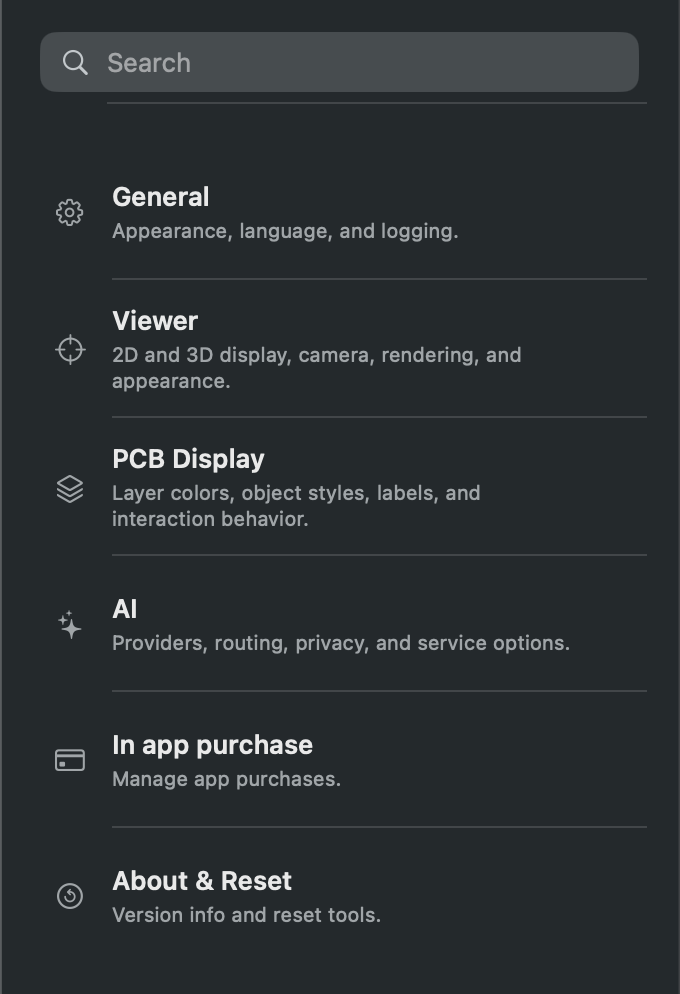
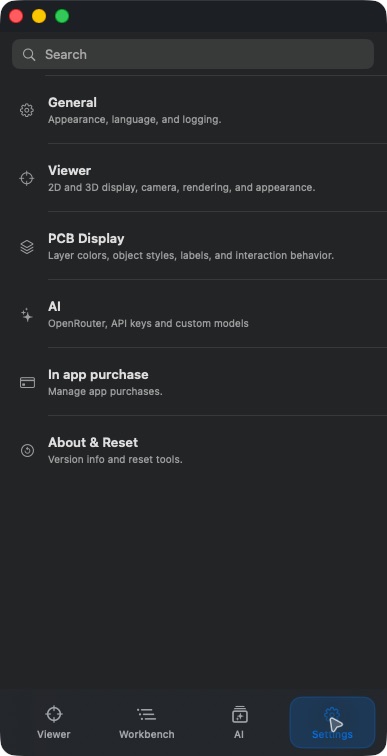
Canvas → Display → Show Axis controls axes and is enabled by default. Status Bar sets navigation-guide coordinate precision (0–6 digits, default 1). Canvas → DRC dimensions offers mm/μm and 0–6 decimal places, defaulting to mm and 3 places. These persistent settings change only Required/Value presentation, not rule thresholds or precision.
Before using AI
- Tap the AI tab. Without credentials, it shows Open AI Settings.
- In AI settings, configure the service, model, and API key you use.
- Return to the AI page, choose Check or Chat for the task, review the current selection and input, then send.
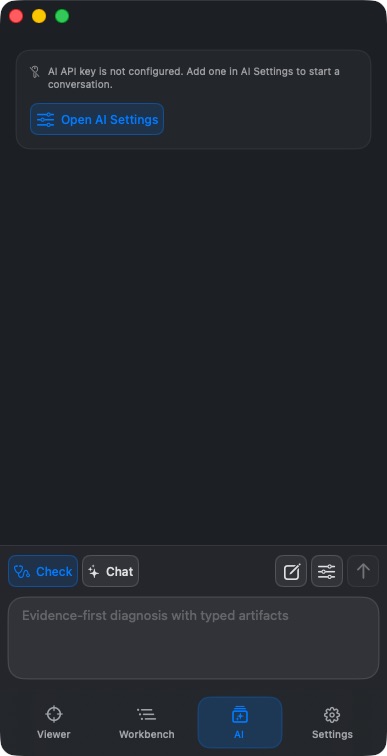
This pass did not configure credentials or send design data to an AI service, so only the unconfigured state was verified. The empty conversation area in the screenshot is not an example of “diagnosis completed.”
Language follows the system language or a language set for the app. General’s Language provides notes; it is not a button that instantly translates the whole app. Terminology preferences affect wording only and do not change design data.
Apple builds support English, Simplified and Traditional Chinese, Japanese, Korean, Spanish, German, French, Brazilian Portuguese, Indonesian, Ukrainian, and Turkish. Choose the language in the system's app-language settings (for example Türkçe) and restart PCBAtlas. The handbook has 11 languages; its language coverage differs from the App.
Result
You can find the current settings categories and understand the prompt when AI is not configured.
FAQ
After opening Settings in the narrow shell, the board disappeared?
Settings is shown as the current page. Tap Viewer to return. The wide shell can usually show the settings sidebar and the canvas at the same time.
Does unconfigured AI affect ordinary viewing?
It does not block local viewing and search. AI requests need separate configuration and network conditions.
Last verified
2026-09-11: hands-on on the macOS 1.1.2 local build; other platforms were not retested on device in this pass.
2026-10-13: instructions and translations checked against current source; historical screenshots retain their capture dates. This documentation review is not new physical-device or store-purchase acceptance.