3D viewing
Android: Tap a component to highlight it and view its source information; 3D selection is independent of 2D. On narrow screens, the viewer stays square, with the header and scrollable controls adding their own height. Capture saves PNG and Export Model exports GLB. The historical macOS verification notes below retain their original scope.
Android: Wide landscape places the 3D Viewer title and Close in a fixed right-panel header, leaving the canvas full height. Settings scroll below; orientation and Info/Capture/Export Model wrap as groups. The dialog retains immersive system bars.
Supported platforms
Apple builds: macOS 14+, iOS / iPadOS 17+. Screenshots in this page are from macOS. Narrow-shell screenshots show window layout, not an iPhone device.
Intended audience
Users who need to check board shape and spatial relationships.
Prerequisites
Open a document that has board-level geometry. A schematic by itself does not provide board-level 3D.
Steps
- Click toolbar 3D and wait for its modal window; close it to return to 2D.
- Use Top / Bottom / Isometric, Fit, and orthographic/perspective projection. Controls sit on the right in wide windows and below the canvas with scrolling in narrow windows. In wide windows, the 3D title and close button sit above the right-hand controls; in narrow windows they sit above the canvas. The close button uses the compact panel size.
- Control top/bottom components, board body, copper, solder mask, and silkscreen independently. 3D visibility is separate from 2D and preserves the camera; use Fit to recenter.
- On macOS, hold Shift and drag with three fingers to pan; drag without Shift to rotate.
- Open Info, search by reference or footprint, inspect shape family, dimension source, visibility, and model diagnostics, and locate components.
- Capture creates a PNG for file sharing. Export Model (GLB) exports currently visible objects; choose a save destination on macOS or use system sharing on iOS/iPadOS.
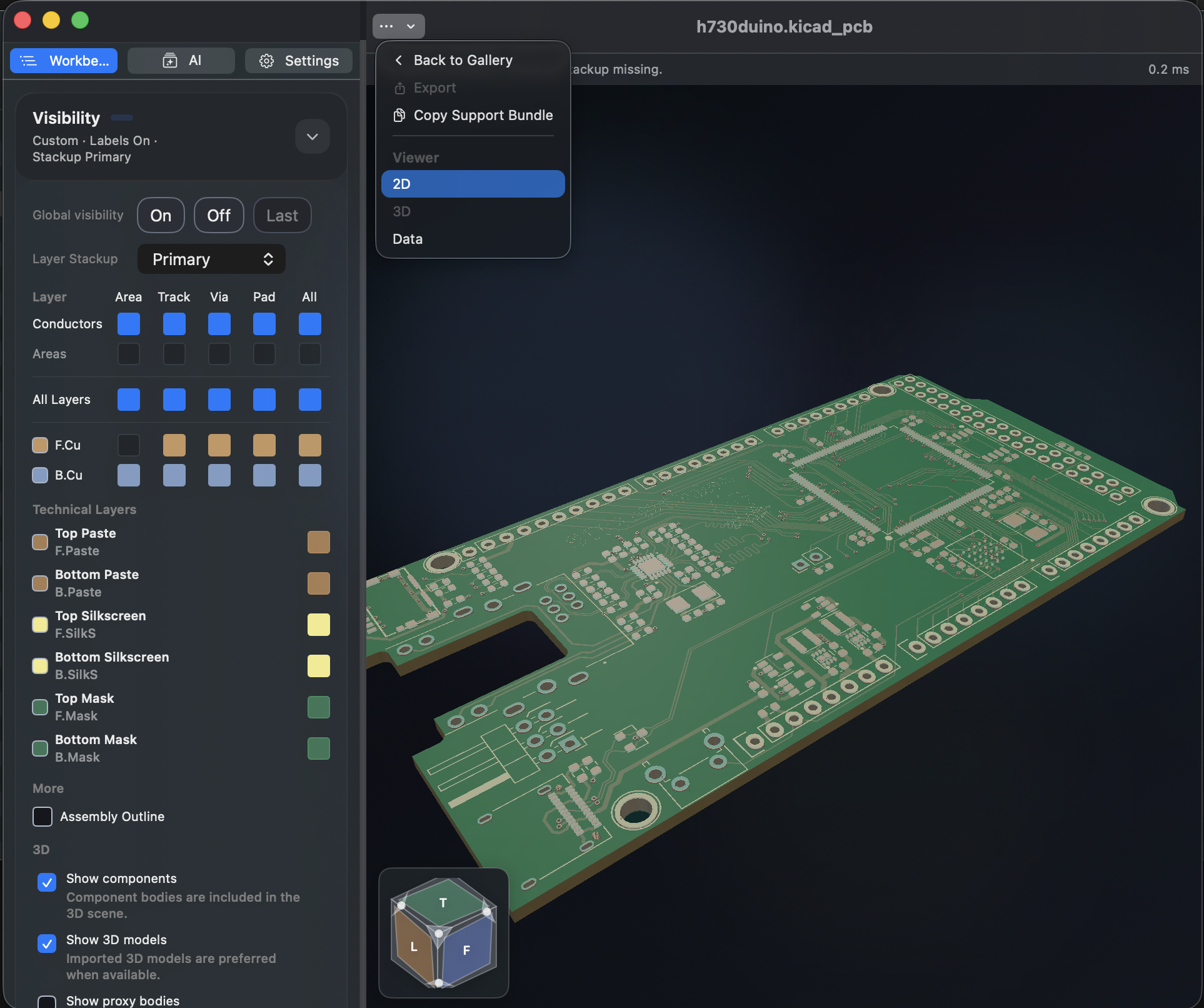
Component shapes are generated primarily from footprint facts. Missing external directories, variables, or model files remain source records without missing-resource warnings. Actual parsing failures, unsupported formats, or invalid stackups are reported. Automatic shapes and inferred thicknesses are not certified mechanical or manufacturing dimensions.
Without Fab/Courtyard geometry, valid pad layouts can produce estimated common or generic bodies, with their source identified in Info. DNP, bare test points, mounting holes, logos, solder bridges, and explicitly hidden models follow source policy. Both surfaces retain silkscreen; drills use their actual layer span for through, blind, and buried holes.
GLB contains visible triangle meshes, colors, and positions, excluding interactive overlays such as coordinate guides. It is glTF 2.0 mesh delivery, not parametric CAD or a manufacturing file; estimated bodies remain approximate.
Result
You can inspect board-level spatial structure and recognize display limits caused by missing source data.
FAQ
Why is a component body missing?
Check the component master switch and top/bottom switches first. DNP or surface features may have no separate body; Info explains actual generation failures. No external model directory or proxy-box switch is required.
Can I export from 3D?
Use Capture or Export Model (GLB). Select objects with visibility controls before exporting. Board manufacturing output still starts in 2D through More → Export.
Last verified
2026-09-11: hands-on on the macOS 1.1.2 local build; other platforms were not retested on device in this pass.
2026-10-13: instructions and translations checked against current source; historical screenshots retain their capture dates. This documentation review is not new physical-device or store-purchase acceptance.