Workbench: visibility, filtering, and search
Supported platforms
Apple builds: macOS 14+, iOS / iPadOS 17+. Screenshots in this page are from macOS. Narrow-shell screenshots show window layout, not an iPhone device.
Intended audience
Users who need less visual clutter, or who need to find nets or sheet objects.
Prerequisites
A PCB or schematic document is already open.
Steps
- Open Inspect on the floating toolbar for the current design's Workbench; use More when an object is selected.
- Expand the sections you need and adjust visibility, selectable types, and search separately.
- The panel sits beside the canvas in wide layouts and above it in narrow layouts. Click Inspect again to collapse it and continue using the canvas.
PCB sections
| Section | Purpose |
|---|---|
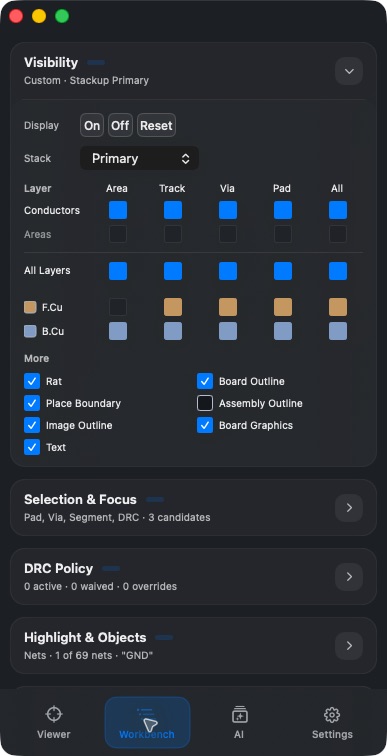
| Display | Layers controls copper and technical/auxiliary layers; Objects controls object visibility and opacity |
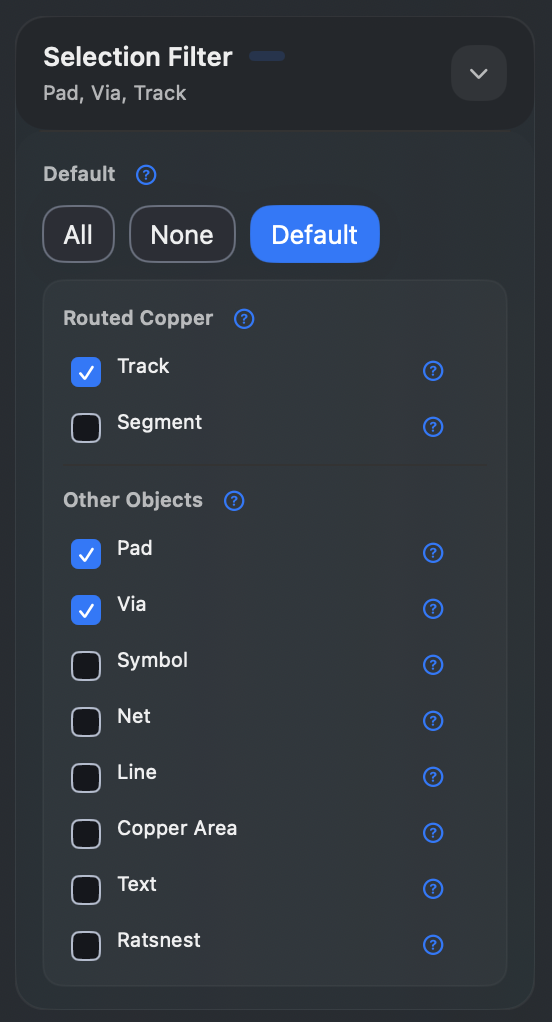
| Selection & Focus | Choose pickable types, with All / None / Default, type help, and Pick Candidates |
| DRC Policy | Inspect rule policy, exemptions, and override state; zero entries does not mean the board passed every rule check |
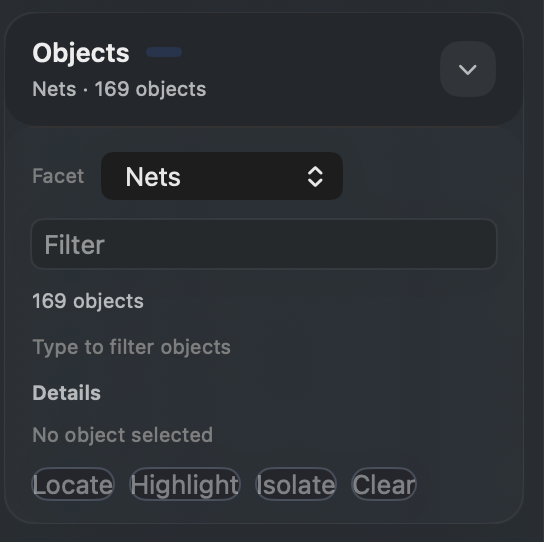
| Highlight & Objects | Search Nets / Layers / Padstacks / RuleClasses and run object actions |
| Review Issues | Inspect existing review issues; the list can be empty when no report has been generated |
| Board Problems | Inspect import diagnostics and issues |
Display controls 2D only, with Layers / Objects tabs. The copper grid contains only Pours, Tracks, Vias, and Pads; technical/auxiliary layers are listed separately. Layer rows control visibility, color, and the active layer; Objects provides object switches and opacity. Set 3D visibility independently in the 3D panel. The screenshot below retains the earlier layout; use this paragraph for current controls. The earlier hands-on date does not mean the new layout has been reverified.
Find and highlight a net
- Expand Highlight & Objects and choose Nets.
- Type a net name in Filter, for example
GND. - Click a result and check object count and layers.
- Locate frames it, Highlight highlights it, and Clear clears selection / highlight. Details opens more information when available; actions there follow the actual object capability.
Schematic sections
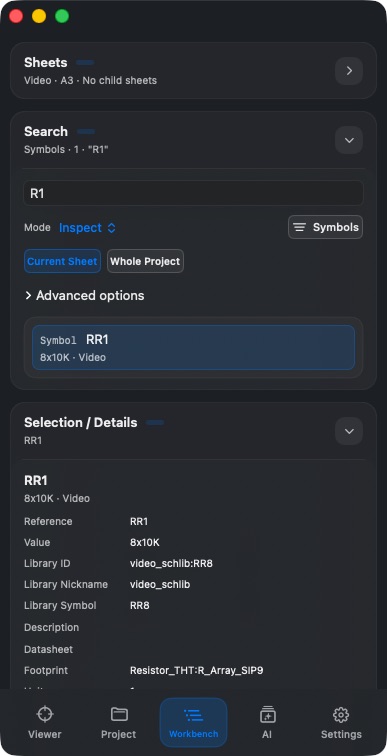
Schematic uses Sheets / Search / Selection / Details / Problems. Search offers Current Sheet and Whole Project scopes, plus object classes and advanced options. Results can show reference, value, and sheet; clicking a result updates details and locates the object.
Result
You finished visibility, type filtering, and object search, and you can inspect locate results in Viewer.
FAQ
I can see an object but cannot select it?
Check whether Selection & Focus allows that type, and whether overlapping candidates were hit. Display only decides whether something is drawn, not whether it can be selected.
Where did Objects / Selection Filter from older handbooks go?
On the current PCB page, the matching sections are Highlight & Objects / Selection & Focus.
Why did Workbench content change suddenly?
It follows the current editor context. PCB and schematic sections differ. In a dual canvas, first confirm which drawing you are operating on.
Last verified
2026-09-11: hands-on on the macOS 1.1.2 local build; other platforms were not retested on device in this pass.
2026-10-13: instructions and translations checked against current source; historical screenshots retain their capture dates. This documentation review is not new physical-device or store-purchase acceptance.