Basic PCB and schematic editing
Android: Compatible schematics support symbol placement, property changes, Undo / Redo, Save, and reopening; not every KiCad schematic is editable. The historical macOS verification notes below retain their original scope.
Supported platforms
Apple builds: macOS 14+, iOS / iPadOS 17+. Screenshots in this page are from macOS. Narrow-shell screenshots show window layout, not an iPhone device.
Intended audience
Users who need small edits during review.
Prerequisites
Work on a copy you can modify, and keep important originals. An available editing entry does not mean every object is writable.
Steps
PCB: select first, then edit
- Open an editable KiCad PCB and stay in 2D.
- In Selection & Focus, allow the types you need, such as Pad, Via, and Segment; pick the target.
- The current track segment may show Slide / Width / Delete; a via may show matching move or delete actions. Buttons change with the selection and whether it is editable.
- Width opens Track Width. Enter a millimeter value, review it, then Apply; use Cancel if you are not changing it.
- When a drag-style action shows a preview, check position and grid, then confirm or cancel. Use available Undo to reverse; when finished, Save, and reopen the revision to check the result.
After selecting a PCB object, the toolbar shows Info, Clear, available editing actions, and More. Clear removes selection; changing selection does not close tool panels. Interactive commands such as Slide retain confirm/cancel and More while auxiliary panels and Export are unavailable. Returning to the library first cancels unconfirmed previews; confirmed edits remain, and an uncancellable apply must finish.
Moving a via does not automatically reroute adjacent tracks for you. Deleting a whole Track is not the same as deleting one geometric segment; check the action name and preview before you proceed. Objects that cannot be identified precisely, are fixed, or are unsupported should be handled as the prompt says.
Schematic: create and edit entry
- In the library, click New schematic project, fill in the name, root sheet, and page size, then Create.
- Click Edit on the 2D toolbar to open Edit schematic.
- Use Symbols to inspect the selection; use Symbol library to inspect embedded symbols, or enter a Library namespace and use Open symbol library…. Search and Include power symbols filter library contents.
- While editing, watch Saved / unsaved status plus Undo and Redo. Follow the app’s Save check before saving. If editing is refused, record the error and keep the original.
Undo/Redo first handles the focused text field's history; an empty text history does not undo the circuit. Outside text input, it affects only the focused editor's draft or document history, never another document. Apply or Cancel pending property edits first. Unmodified properties refresh with history while unsubmitted input remains. The editor panel stays open when Save updates the revision.
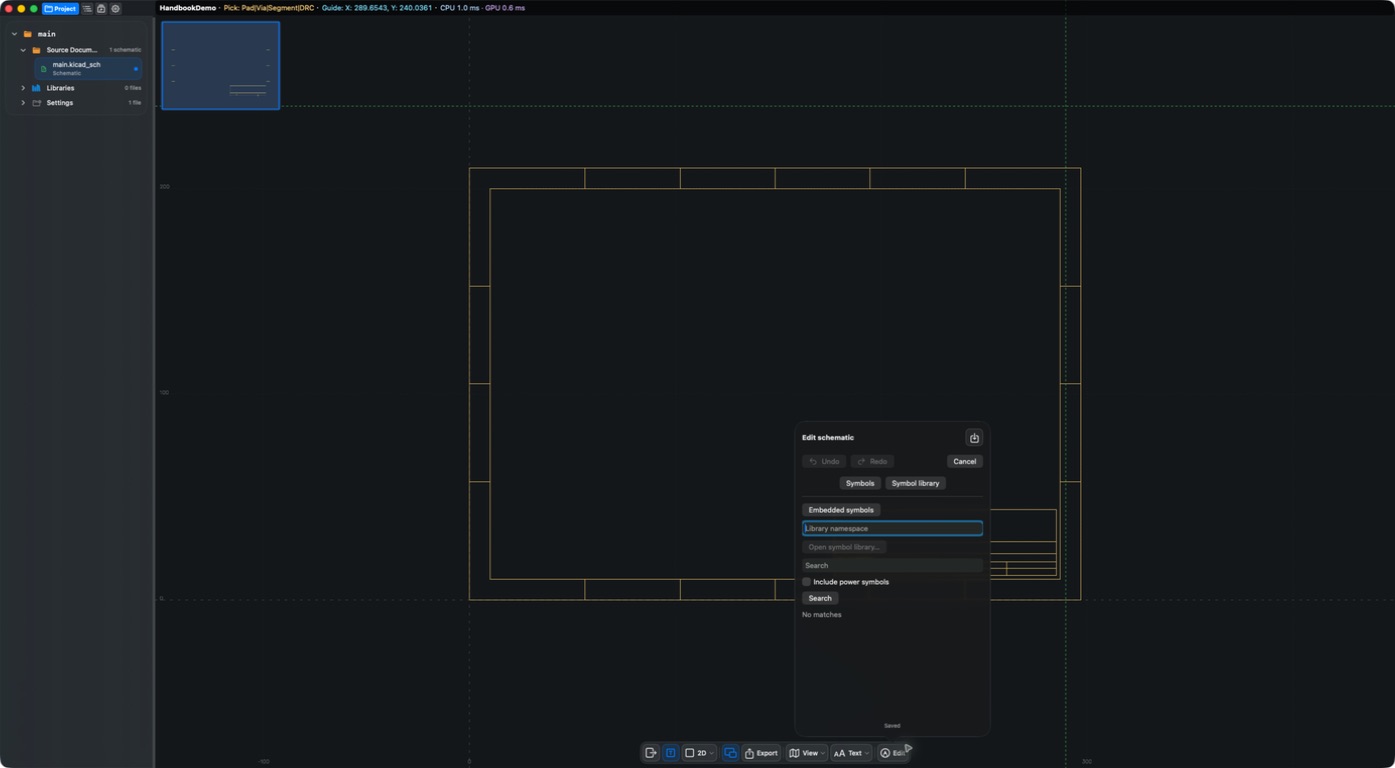
Schematics have create and edit entries. A single-sheet macOS test project has verified Value changes, Undo/Redo, explicit Save, and cold reopen. Complete symbol-placement, multi-sheet/hierarchical, and ECO interactions still require separate acceptance; this does not make every KiCad schematic editable.
Layout and edit validation
Toolbars and panels adapt to available space. If content overflows, an error is truncated, or a save check rejects an operation, retain the complete error and an input copy, and compare wide/narrow layouts. Do not bypass validation to write back. Display issues in historical screenshots do not establish a current-version defect.
Result
You know the PCB editing actions and the schematic editing entry, and you can confirm current capability and save state before changing anything.
Format-change marker for older KiCad boards
On Apple platforms, supported KiCad 6–9 PCB migration marks the document modified even before geometry edits. Save stores the upgraded library revision; the original source remains intact before saving, and the externally selected file is not overwritten. Geometry undo does not undo format migration. Discarding and reopening an older source migrates it again.
FAQ
Why can I open details but not edit?
Viewing and write-back have different requirements. Editing also needs a precise object and a savable source.
What are Cancel and Save for?
Cancel abandons the current operation or closes the matching flow. Save stores the edit result. Check unsaved prompts before leaving; closing a sheet is not a substitute for save confirmation.
Last verified
2026-09-11: hands-on check of PCB Width then cancel, new schematic, and the Edit panel; no writes were made to existing boards.
2026-10-13: instructions and translations checked against current source; historical screenshots retain their capture dates. This documentation review is not new physical-device or store-purchase acceptance.